First identify which screen you are controlling: the run, the upgrade tree or the card menu. Moving the hole during a run and navigating a branching tree are different interactions. If an input seems ineffective, check the screen and the prompts before assuming a key is broken.
This guide covers the mouse-driven early browser demo and the controls visibly labelled in the Steam preview. It does not invent a complete keyboard/controller binding chart. The developer's early update confirms improvements to camera zooming and controller selection; exact buttons in your current Steam build should be read from its prompts.
Start and retry in the early demo
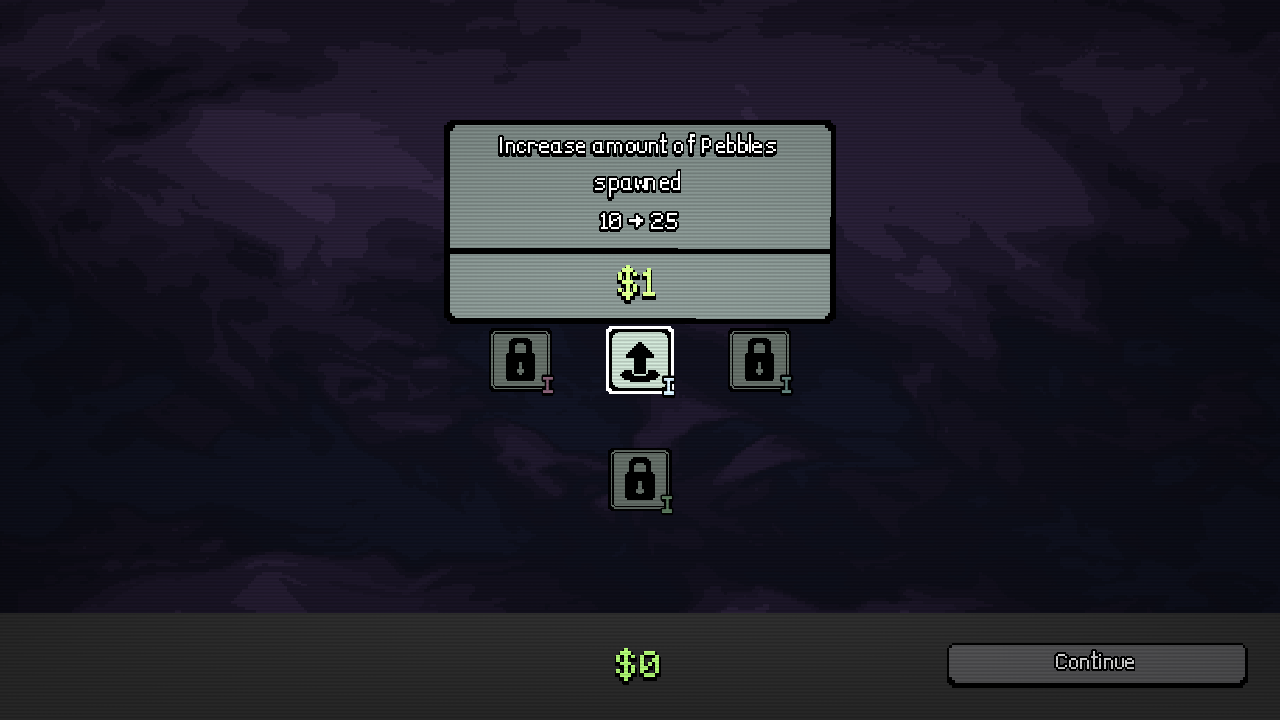
The browser-demo main menu has a Play button. Its progression screen provides Continue, and the Hunger Depleted result offers Upgrades and New Run. These are separate actions: returning to progression lets you inspect purchases, while New Run starts another attempt. Neither requires using the main menu's Delete Data option.
During our inspection, the hole was controlled through mouse movement. Try short movements toward one nearby object rather than sweeping across the entire scene. Confirm the HUD responds to the attempt. A movement that did not collect anything does not prove the game requires a particular keyboard binding or an extra attack button.
If the browser page has other controls around the game, place focus inside the game before testing inputs. Check that a text field or the browser's page controls are not receiving your keyboard input instead. This is a browser focus check, not a game-specific hotkey.
Navigate the larger upgrade tree
| Preview control | What it is useful for |
|---|---|
| Navigate | Moving around branches instead of losing sight of your current node |
| Zoom | Reading a node closely or getting a broader view of connections |
| Display Costs | Comparing purchase prices without assuming the icon explains the cost |
| Recenter View | Returning to a usable view after moving across the tree |
| Booster Packs | Opening the card-related screen shown separately |
| Start | Beginning the next attempt from progression |
The preview places a Tab key prompt beside Display Costs. Treat that as the pictured build's prompt; use your current prompt if it differs. The navigation and zoom prompts are shown graphically, so this page retains their names rather than guessing a mouse-button binding from a small icon.
Recenter before making a purchase if you have lost the connected path. Zoom out to understand the branch, then zoom in to read the specific effect and requirement. A visible node is not necessarily an immediately available purchase: connections, costs and locked states still matter.
Controller navigation and camera movement
The developer's v0.2 note says controller support improved so the camera moves with the selected node. That is an early-demo change, not a promise that every platform or controller uses identical bindings. If you are testing a controller, begin with a visible node and see whether selection and camera position stay together.
Avoid switching among mouse, keyboard and controller inputs rapidly while diagnosing a selection problem. Test one input method on one screen, then compare another. This makes it easier to describe the failure to the developer without confusing a camera movement with a purchase or run input.
Browser display and focus checks
Our browser inspection became easier to operate in a wide 1280-by-720 viewport than in a narrower 4:3 setup. This describes the inspection environment; it does not establish a required resolution or a bug in the game. If menu controls are difficult to reach, try a wider game view and inspect the whole frame before clicking repeatedly.
If controls respond but gameplay stutters, follow the performance and save guide. If you are unsure whether you opened the old browser version or the Steam demo, use the edition comparison. These checks address different problems and should be kept separate.
Sources: Steam interface screenshots and the developer's camera/controller update.